Copy tasks onto an invoice
You have already described the work in the job's tasks, so you don't need to type it again. Copy tasks turns each task on the linked jobs into a line item on a new quote or invoice.
- Start a new quote or invoice, either from a job or from a customer.
- Make sure the jobs you're invoicing are linked. From a job this happens automatically. From a customer, click Link jobs first.
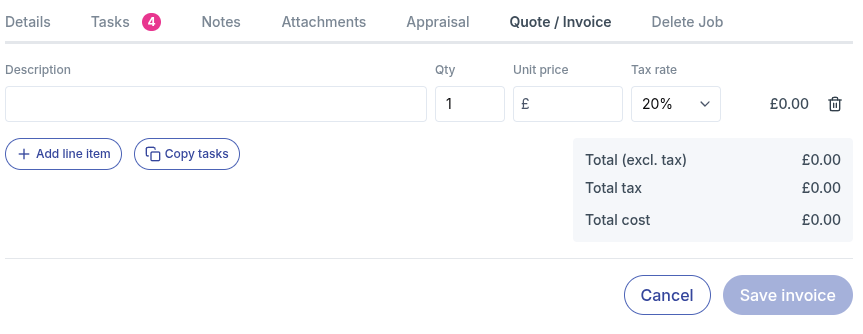
- Click Copy tasks, next to Add line item.
- Add a Unit price to each new line, and change the Qty or Tax rate if you need to.
- Check the totals and click Save invoice.
What gets copied
- Each task's description becomes the description of a new line.
- Each new line starts with a Qty of 1, an empty Unit price and a Tax rate of 20%.
- Tasks are added job by job, in the same order they appear on each job.
- Tasks with no description are skipped.
If the invoice only has its first empty line, the copied tasks replace it. If you have already added your own lines, the copied tasks are added below them, so nothing you've typed is lost.
Linked another job after copying? Click Copy tasks again. Only the tasks you haven't copied yet are added, so you won't get duplicates.
Copy tasks is only available while you're creating a new quote or invoice, not when you're editing a saved one. A document can have up to 100 lines, and each line description can be up to 500 characters. If the copy would go over either limit, workauto tells you and nothing is added.
When the button is greyed out
Hover over the button or read the message underneath it. The usual reasons are:
- No jobs are linked. Link the jobs you want to invoice first.
- All the tasks have already been copied. Add any extra lines with Add line item.
- The linked jobs have no tasks. Add tasks to the job, or enter your lines by hand.
- The tasks are still loading, or the invoice is saving. Wait a moment and try again.