Book the job in
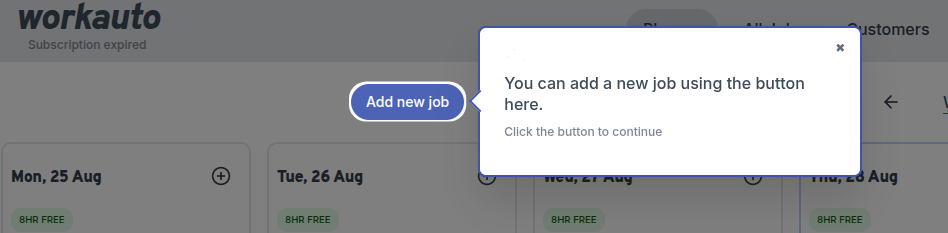
Start on the planner and click Add New Job. Give the job a title and description, then work through the steps.
- Add the customer and vehicle. An invoice always belongs to a customer, so the job must have one. Add an email address and phone number so you can send booking confirmations and reminders. Add a customer.
- Add the customer's address if you want it to appear on the invoice. You can do this on the customer's profile at any time before you invoice. Add the customer's address.
- Assign a date so the job appears on the planner. Assign a date.
- Assign a technician, or leave the job for a technician to pick up in TechView. Add a technician.
tip
If the customer and vehicle already exist, search for them instead of adding them again. Their invoices and history then stay together on one profile.