Using filters
Click the Filter button at the top of the planner to open the filter panel.
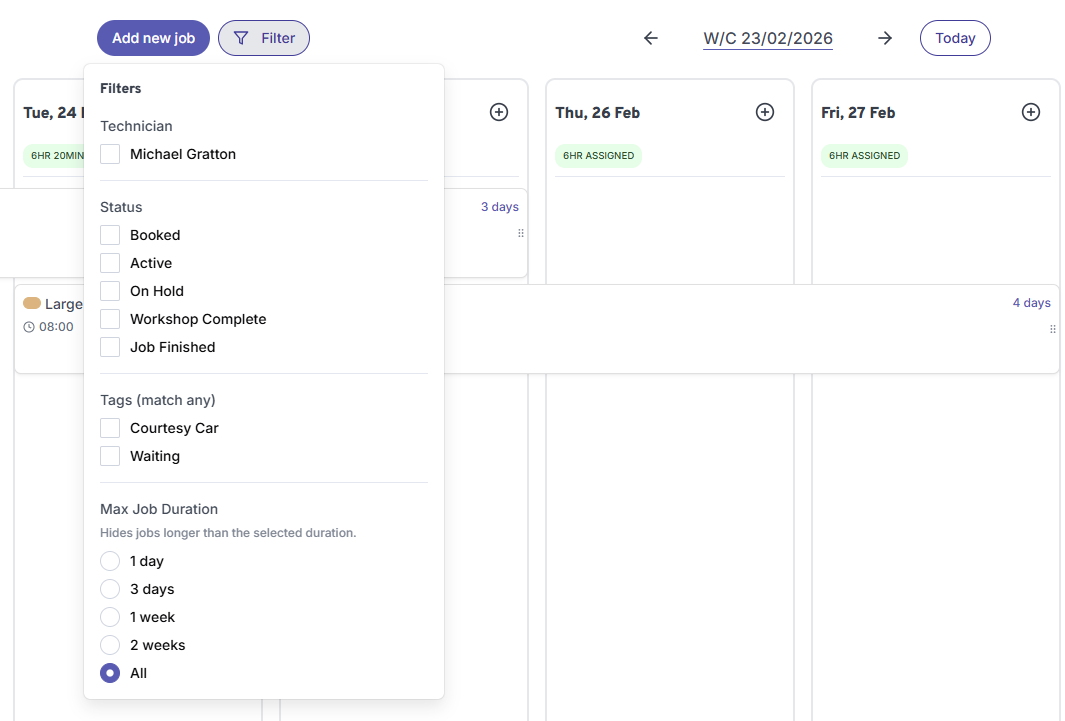
You can filter the planner by:
- Technician — Show only jobs assigned to a specific technician. Useful when you have multiple staff and want to focus on one person's schedule.
- Status — Filter by job status: Booked, Active, On Hold, Workshop Complete, or Job Finished. You can select multiple statuses at once.
- Tags (match any) — Filter by tags assigned to jobs, such as Courtesy Car or Waiting. Any job matching at least one of the selected tags will be shown.
- Max Job Duration — Hide jobs longer than a set duration. Choose from 1 day, 3 days, 1 week, 2 weeks, or All. This is useful if you want to focus on shorter jobs without the multi-day jobs taking up space.
Filters apply immediately as you select them. To clear a filter, deselect the options or switch Max Job Duration back to All.