The planner
The planner gives you a full week view of all scheduled jobs, making it easy to see workload across your team at a glance.
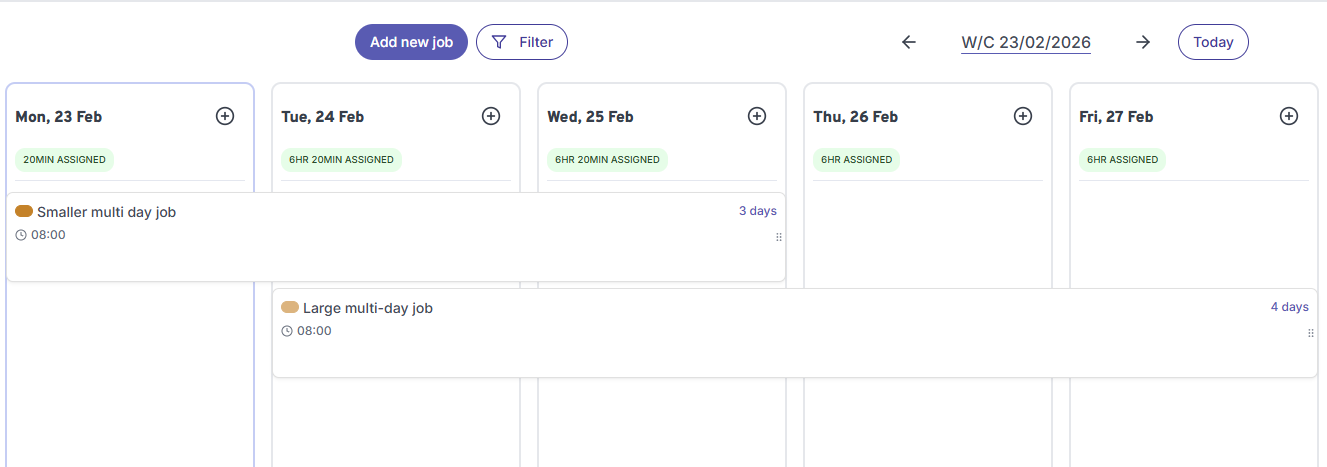
Each column represents a day of the working week. At the top of each day you can see the total time assigned, so you can quickly spot days that are over or under booked.
Use the arrow buttons to navigate between weeks, or click Today to jump back to the current week. The week is shown as a W/C (week commencing) date in the centre.
Jobs that span multiple days appear as a single card stretching across the relevant columns, with the number of days shown on the right. This makes it easy to see at a glance which technicians are committed to longer jobs and for how long.
To add a new job you can click the Add new job button at the top, or click the + icon on any day column to create a job directly on that date.